.png)
How to Submit a Proposal
Follow our step by step guide
Tips to remember:
- Project proposals can be high-level or detailed; choose what works best for your group or organisation
- If you're working on a large project, consider breaking it into phases and submitting each phase as an individual project proposal
- Feel free to save your proposal and come back to it before publishing on BeConnected
- You can update your proposal anytime after publishing it on BeConnected
- Your group or organisation can upload as many proposals as you wish to BeConnected
What to include in your project proposal:
Required Fields
Project Title: Choose a short, powerful, and eye-catching title
Project Summary (200 characters) : Write a short sentence that captures your project's main goal and who will benefit
Proposal Text (6,000 characters - please type directly into the box rather than copying and pasting from another source) : Please answer the following questions:
-
What do you want to do? Clearly list the activities you need funding for.
-
Why is your project important for your community? Please include details of how your project aligns with your Area Place Plan. Summarise the evidence showing why your community needs this project.
-
What positive impact will your project have? Tell us about the outcomes you expect
-
What key milestones have you achieved so far and what will be your next steps? Include details about what stage your project is at: Community engagement & support evidenced, project plan/feasibility/business case created, necessary consents obtained, quotes obtained, funding application submitted etc.
-
What is your anticipated start/end date? Provide the project duration and estimated start date.
Price: Estimate the project cost. This can be a ballpark figure.
Adding a Video: Provide a link to a YouTube or Vimeo video about your project. Make sure it's suitable for all audiences.
Project Picture: Upload one image to attract attention. Make sure it's suitable for all audiences and respects privacy.
Documents: Upload up to three PDF documents (max 3MB each) to support your proposal.
Geographic Area: You must select the administrative area your project will be based. Please click the dropdown menu to select your area. If your project is across multiple areas, please select 'multi-area'.
Map Location: Don't forget to place a pin on the map to show your project's location. If there isn't a single location, pin the main location of your group or organisation.
Selecting Categories for Your Project: At the end of your proposal form, select relevant categories to help people find your project. You can choose more than one category but make sure they are relevant. Click on each category for descriptions.
1. Funding Type: Select £Capital, £Revenue or both to indicate the type of funding needed.
2. Project Focus: Select one or more categories that describe your project's main focus.
Arts & Heritage, Capital, Community hubs, Digital Connectivity, Employment, Energy Efficiency, Environmental Initiatives, Footpaths, Harbours, Healthcare, Housing & Accomodation, Local events, Mental Health, Nature Restoration, Outdoor community space, Planning & Development Phases, Playparks, Public Toilets, Revenue, Social and support services, Support for local businesses, Transport, Visitor Infastructure, Waste Reduction, Youth Spaces and Activities
Once you have completed your proposal form, click "Save proposal".
If there are errors on the form, it will not be saved and an error message will be displayed, e.g.:

Please check through the proposal form for any errors, which will be highlighted in red. You will also find advice on how to correct the error in red text.
.png)
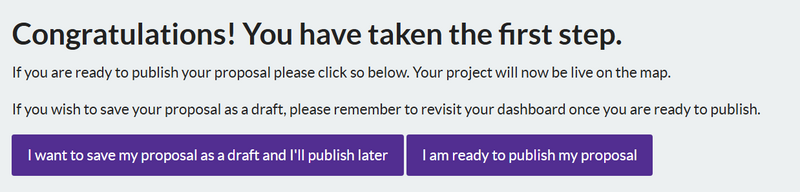
Once you push submit on the proposals page, this pop-up box will appear. If you do not need to add any further information to your proposal, please select 'l am ready to publish my proposal' box on the right.
If you wish to save your proposal as a draft, select 'I want to save my proposal as a draft and I'' publish later'.
Saved your project proposal as a draft and now ready to publish it on BeConnected?
Follow these quick steps:
-
Sign In: Log in to your group's account on BeConnected
-
My Content: Click on 'My Content' at the top of the page
-
Dashboard: Click on the 'dashboard' button next to your proposal you wish to publish
-
Edit Proposal: In your dashboard, click 'Edit My Proposal'
-
Publish: Click the green 'Publish' button to share your project on BeConnected
Published your project proposal on BeConnected but now wish to Withdraw?
Follow these quick steps:
-
Sign In: Log in to your group's account on BeConnected
-
My Content: Click on 'My Content' at the top of the page
-
Dashboard: Click on the 'dashboard' button next to your proposal you wish to publish
-
Withdraw Proposal: In your dashboard, click 'Withdraw My Proposal'
-
Submit Withdraw: Provide a reason you wish to withdraw your project from the dropdown and a short explanation in the box.